
Case Studies by Field
All Case Studies31
Cloud Services9
Core & Business Systems4
Construction DX2
E-commerce Development3
Inventory & Order Management4
AI Adoption11
DX Promotion8
New Ventures12
CASE STUDY
Running Many Projects and AI Agents from One Screen and Your Phone: Our In-House Tool cockpit
Overview
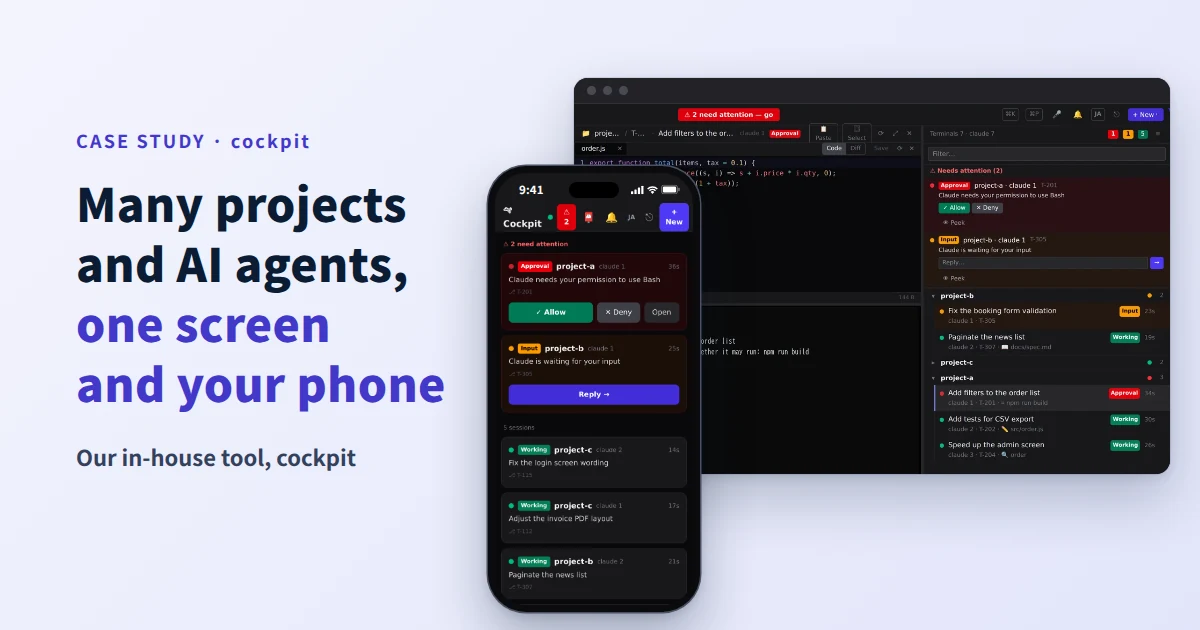
cockpit is a tool we built ourselves to run AI agents working on many projects at the same time, all from one screen and a phone.

The problem
- In the way we work, Cursor and VS Code were heavy: running several projects and agents at once kept freezing the PC
- With many projects, when an AI stopped to ask "May I run this?", we couldn't tell which project or agent it was
- We wanted to see what every agent was doing at a glance
What cockpit does

- Everything on one screen — the agents at work, grouped by project
- Stopped ones rise to the top — only the agents waiting for a person collect at the top, automatically
- One tap on your phone — allow or reply straight from the notification, so work keeps moving even when you're out
- Request box — send a request from your phone mid-meeting, and the next free agent picks it up
We built it as our own screen that runs in a browser, without relying on editor products such as Cursor or VS Code. An editor above the terminal shows each change on the spot, so the AI's work and the human check sit in one place.
The actual screens
On a computer, files, code, the terminal and the list of AI agents share one screen. Anything waiting for a person collects under "Needs attention" at the top right.

On a phone, too, whatever needs attention sits at the top, and you can allow or reply right there.

The screens were captured with demo projects.
Connected to projectAI

Each agent works against a task in projectAI, our own project management tool. It checks the task before starting, then records progress, time spent and pull requests in projectAI.
Results — all from one development machine
Every figure below comes from one of our development machines, over about the last two months.

They are counted from the AI agents' work logs, treating any stretch with no gap longer than ten minutes as "running", and include helper agents called in along the way.
Interested in cockpit?
If your company is interested in how cockpit works, or in setting up development with several AI agents, we'd be glad to hear from you.
Related case studies and services
- AI Takes Change Requests from Specification to Production: Running the AI Agent Mr.AI In-House
- Company-wide use of projectAI
- Running AI Without Data Leaving the Company: our in-house local LLM case study
- What Does It Mean to Delegate Work to AI? What We Learned Running Mr.AI
- AI Implementation Support
- Local LLM Build and Implementation Support
- Development consultation and estimates
FREE ESTIMATE
Free Estimates: Learn What to Build and the Cost Range on the First Call
Your requirements do not need to be settled. Tell us in a sentence what you want to build, and your project manager will sort it out with you.