
BLOG
How to Install Apps on Linux: When to Use Commands and When to Use App Stores

- The Easy Way: Using App Stores and GUI Tools
- Steps to Install Software Using an App Store
- Uninstalling Apps Using an App Store
- Uninstalling AppImage Apps
- Pamac
- Steps to Install Software Using Pamac
- Uninstalling Apps Using Pamac
- Intermediate: Installing Software from Files (.deb, .rpm, Snap, Flatpak)
- 1. Installing .deb Files (for Debian-Based Distributions)
- 2. Installing .rpm Files (for Red Hat-Based Distributions)
- 3. Installing Snaps (a Universal Package Format)
- 4. Installing Flatpaks (a Universal Package Format)
- How to Install a Flatpak App (GUI Method)
- Advanced: Installing and Uninstalling Apps from Source (Including AUR)
- 1. How to Install Apps from Source on Linux
- 2. Uninstalling Applications Installed from Source
- Installing AUR Packages (Arch Linux)
- Go-To Apps by Use Case and Where to Get Them
- Conclusion and Final Recommendation
Linux is known for its flexibility and openness, but for many users, especially beginners, installing software can feel difficult. Unlike other operating systems such as Windows and macOS, Linux offers several different ways to install applications. That flexibility is a strength, but it is also why people are often unsure which method to use. The appeal of Linux lies in its diversity. Whether you are on a user-friendly distribution like Ubuntu or an advanced one like Arch Linux, there are three main ways to install software: easy, medium, and hard. You can choose a method based on your needs, your technical expertise, and what you want to use the software for.
Why it matters to understand installation methods
Knowing how to install software efficiently is a fundamental skill for Linux users. Depending on your needs, you can choose a simple graphical interface, a lightweight manual approach, or the powerful route of compiling from source code.
Whether you are looking to install your favorite media player, a productivity tool, or developer software, this guide will help you find your way through the world of Linux installation with ease. Let's get started!
The Easy Way: Using App Stores and GUI Tools
The easy way, aimed at beginners and casual users, is to install software through a graphical user interface (GUI). This includes app stores, GUI tools for package managers, and AppImage files. None of these methods require terminal commands, and they are as simple as using the app store on your smartphone. Let's take a closer look.
1. Using App Stores
Linux distributions such as Ubuntu, Linux Mint, and Fedora come with a built-in app store or software center that makes it easy to find, install, and manage software. These app stores give you access to a wide range of software from official repositories or third-party sources.
Examples of app stores
-
Ubuntu Software (for Ubuntu-based distributions)
-
GNOME Software (used on Fedora, Debian, and other GNOME-based systems)
-
Discover (for the KDE Plasma desktop)
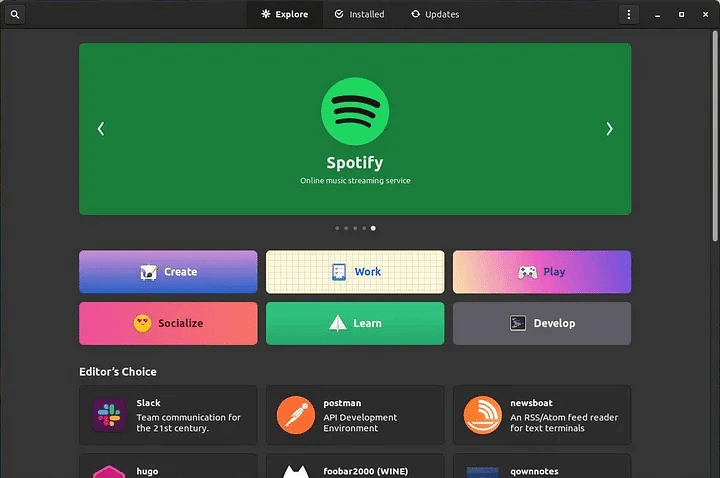
GNOME Software Center
Steps to Install Software Using an App Store
- Open the app store
-
On Ubuntu: open Ubuntu Software from the applications menu
-
On Fedora: open Software from the Activities menu
2. Search for the software
- Use the search bar to find the app you want (for example, VLC, LibreOffice, or GIMP)
3. Install the app
-
Click the app in the search results
-
Click Install and enter your password if prompted
4. Launch the app
- After installation, the app appears in your applications menu
Uninstalling Apps Using an App Store
-
Open the app store and go to the Installed section.
-
Find the app you want to remove.
-
Click Remove or Uninstall and authenticate (with your PC password) if required.
2. Using AppImage Files
AppImage files are portable applications that require no installation. They are self-contained and run on most Linux distributions. They are very similar to a .dmg on macOS or an .exe on Windows, and can be run immediately on any Linux distribution. It is very easy to have multiple versions of the same application installed side by side, which is useful when you need an older version of a piece of software.
1. Download the AppImage file
-
Go to the app's official website or a trusted source such as AppImageHub.
-
Example: download the AppImage for Krita (a digital art tool).
2. Make the file executable
- Right-click the file → select Properties → go to the Permissions tab → check "Allow executing file as program."
3. Run the app
- Double-click the AppImage file to launch the app. For more details, see the YouTube tutorial.
Uninstalling AppImage Apps
1. Delete the .AppImage file from your system.
2.You can use AppImage Launcher to manage and uninstall apps, as shown in the YouTube video above.
3. Using Pacman GUI Tools
On Arch Linux and its derivatives (such as Manjaro), you can easily install apps with GUI tools for the pacman package manager. Popular GUIs include Pamac and Octopi. Pamac, however, is very easy to use and is recommended over Octopi.
Pamac
Steps to Install Software Using Pamac
1. Open Pamac
- On Manjaro, search for Add/Remove Software in the applications menu.
2. Search for the software
- Type the app name in the search bar (for example, Firefox or VS Code).
3. Select and install
-
Click the app in the search results.
-
Click Apply or Install and authenticate.
4. Launch the app
- The app becomes available in your applications menu.
Uninstalling Apps Using Pamac
-
Open Pamac and go to the Installed tab.
-
Find the app you want to remove.
-
Click Remove and confirm the action.
Comparing the easy software installation methods on Linux
1. App stores:
-
Ease of use: very easy.
-
When to use: when the software is available in the official repositories.
2. Pacman GUI:
-
Ease of use: easy for Arch Linux users.
-
When to use: when managing packages on Arch-based distributions such as Manjaro.
3. AppImage files:
-
Ease of use: simple and portable.
-
When to use: when you need a portable app or the software is not available in the repositories.
Intermediate: Installing Software from Files (.deb, .rpm, Snap, Flatpak)
This method is considered intermediate because it requires basic terminal knowledge and an understanding of package management on Linux. Graphical tools are available, but advanced features, custom installations, and troubleshooting are easier to handle in the terminal. This approach gives you flexibility and access to the latest software versions that may not be available in app stores.
1. Installing .deb Files (for Debian-Based Distributions)
What is a .deb file?
A .deb file is a prebuilt package used on Debian-based Linux distributions such as Ubuntu, Linux Mint, and Pop!_OS.
How to install a .deb file (GUI method)
-
Download the file: go to the official app website (for example, Google Chrome).
-
Open the file: double-click the .deb file and open it with a software installer such as GDebi or Ubuntu Software.
-
Click Install: follow the on-screen instructions and enter your password if prompted.
Command-line method
-
Open a terminal and go to the folder where the .deb file is saved.
-
Install the file with the following command:
sudo dpkg -i <file-name>.deb
3. If there are missing dependencies, fix them:
sudo apt --fix-broken install
How to uninstall a .deb app
sudo apt remove <package-name>
2. Installing .rpm Files (for Red Hat-Based Distributions)
What is an .rpm file?
An .rpm file is the standard package format for Red Hat-based distributions such as Fedora, CentOS, and openSUSE.
How to install an .rpm file (GUI method)
-
Download the file: get the .rpm file from the official app website (for example, Visual Studio Code).
-
Open the file: double-click the file and open it with a software installer such as GNOME Software.
-
Click Install: follow the instructions and authenticate if required.
Command-line method
-
In the terminal, go to the directory that contains the .rpm file.
-
Install it with the appropriate command:
sudo dnf install <file-name>.rpm # Fedora-based sudo rpm -i <file-name>.rpm # Generic RPM-based
How to uninstall an .rpm app
Use the app store or run the following command:
sudo dnf remove <package-name> # Fedora sudo rpm -e <package-name> # Generic
3. Installing Snaps (a Universal Package Format)
What is Snap?
Snap is a containerized application format developed by Canonical. It works on many Linux distributions and lets you install and update apps from one central place.
How to install a Snap app (GUI method)
-
Open the app store: on Ubuntu, open Ubuntu Software, which supports Snap packages.
-
Search for the app: use the search bar to find the app you want.
-
Install the app: click Install and authenticate if prompted.
Command-line method
- Open a terminal and run:
sudo snap install <app-name>
How to uninstall a Snap app
Use the app store or run the following command:
sudo snap remove <app-name>
4. Installing Flatpaks (a Universal Package Format)
What is Flatpak?
Flatpak is another universal Linux package format supported by many distributions. It improves security and compatibility by isolating apps from the system.
How to Install a Flatpak App (GUI Method)
- Enable Flatpak support: install Flatpak and add Flathub as a source:
sudo apt install flatpak # Debian-based flatpak remote-add --if-not-exists flathub <https://flathub.org/repo/flathub.flatpakrepo>
2. Open the software center: use GNOME Software or Discover once Flatpak support is enabled.
3. Search for the app: use the search bar to find the app you want.
4. Click Install: follow the instructions and authenticate if required.
Command-line method
1. Install Flatpak if needed:
sudo apt install flatpak
2. Add Flathub as a source:
flatpak remote-add --if-not-exists flathub <https://flathub.org/repo/flathub.flatpakrepo>
3. Install an app from Flathub:
flatpak install flathub <app-name>
How to uninstall a Flatpak app
Use the app store or run the following command:
flatpak uninstall <app-name>
Why use these methods
-
.deb and .rpm files: best for software supported directly by its developers, or software not available in app stores.
-
Snap and Flatpak: excellent for universal compatibility across Linux distributions.
These methods offer more flexibility and let you install the latest versions of apps, as well as apps that are not available in traditional app stores.
Advanced: Installing and Uninstalling Apps from Source (Including AUR)
Installing and uninstalling apps from source, or through the Arch User Repository (AUR), is considered "advanced" because of its complexity, its manual steps, and the lack of central management. These methods offer a higher degree of customization and access to cutting-edge or hard-to-find software. However, they require knowledge of the Linux command line, system directories, and package management.
1. How to Install Apps from Source on Linux
Why install from source?
-
Access to the latest versions of applications
-
Custom build configurations
-
Support for software not provided in the official repositories
Step 1: Install build tools
Depending on your Linux distribution, install essential build tools such as gcc and make, along with any specific libraries:
- On Debian/Ubuntu:
sudo apt update sudo apt install build-essential
- On Fedora:
sudo dnf groupinstall "Development Tools"
- On Arch Linux:
sudo pacman -S base-devel
Step 2: Download the source code
Go to the official website or GitHub repository of the application you want to install:
git clone <https://github.com/example/app.git> cd app
Step 3: Compile and install
1. Configure the build:
./configure
2. Build the application:
make
3. Install the application:
sudo make install
4. Verify the installation:
which app-name app-name --version
Step 4: Run the application
Use the installed application as usual:
app-name
2. Uninstalling Applications Installed from Source
How you uninstall depends on whether the developer provides an uninstall option.
Method 1: Use make uninstall (if available)
1. Go to the source directory:
cd ~/source-folder/app
2. Run the uninstall command:
sudo make uninstall
Method 2: Remove manually
-
Check the Makefile or installation guide: find the installation locations in files such as the Makefile or README.md.
-
Remove the installed files:
sudo rm /usr/local/bin/app-name sudo rm -rf /usr/local/lib/app-name* sudo rm -rf /usr/local/share/app-name
- Search for leftover files:
sudo find /usr/local -name "*app-name*" -exec rm -rf {} \\;
Installing AUR Packages (Arch Linux)
Step 1: Install an AUR helper
You can install AUR packages manually, but an AUR helper simplifies the work.
Install yay or paru:
sudo pacman -S yay
Step 2: Install an AUR package
Search for and install the package you need:
yay -S app-name
Step 3: Verify the installation
app-name --version
Uninstalling AUR packages
Remove a package with yay:
yay -Rns app-name
Recommendations
-
Use an AUR helper on Arch Linux: yay, paru, or pamac simplify installation and removal.
-
Keep a record of manual installations: when installing from source, note the installation paths and generated files.
-
Use checkinstall for source builds: this tool creates packages that are easy to remove.
Go-To Apps by Use Case and Where to Get Them
So far we have covered how to install apps. If you have just moved to Linux and are unsure what to install in the first place, here is a starting point: go-to apps for each use case and the main places to get them. All of them are free to use and can be installed from the app stores or repositories of the major distributions. The text in parentheses shows which of the three methods described in this article applies.
-
Browsers: Firefox (preinstalled on many distributions; install from the app store or with apt / dnf), Chromium (app store or repositories), Google Chrome (.deb / .rpm from the official website)
-
Office and documents: LibreOffice (app store, repositories, or Flatpak), Evince or Okular for viewing PDFs (repositories)
-
Images and video: GIMP (image editing), Inkscape (vector graphics), and VLC (video and music playback) can all be installed from the app store or repositories. For streaming and screen recording, use OBS Studio (Flatpak or the official installation steps)
-
Development: Visual Studio Code (.deb / .rpm from the official website, or Snap), Git (repositories), Docker Engine (add Docker's official repository and install with apt / dnf)
-
Chat and meetings: Slack, Discord, and Zoom are distributed as .deb / .rpm files on their official websites, and also as Snaps and Flatpaks
-
Utilities: Flameshot for screenshots, Timeshift for backups, and htop for checking processes in the terminal (all from the repositories)
Choosing where to get each app follows the same thinking as the first half of this article. If stability is your priority, use your distribution's repositories (the app store or apt / dnf), and switch to Flatpak, Snap, or the official website's files only for apps where you need the latest version. Installing the same app twice through different methods makes updates confusing, so we recommend deciding on one source per app.
Conclusion and Final Recommendation
For everyone from beginners to advanced users, we recommend Manjaro Linux combined with Pamac (the GUI for Pacman) and AUR support. This setup strikes a balance between ease of use and advanced features. If you need a specific version, especially when a newer version may break a feature you rely on, use AppImage files. Together, this combination gives you an all-in-one solution for managing software on Linux.
Happy Linux-ing! 😊
This article was originally written in English by our engineer Pranav Jha in December 2024 and translated into Japanese for our Japanese site.
The original English version is available here:
https://articles.wesionary.team/demystifying-software-installation-on-linux-easy-medium-and-hard-methods-for-every-user-5a9217f98d3b
Careers
We are working to systematize product co-creation. We are hiring product managers to lead product co-creation, and sales members to bring our vision to the market!
https://wesionary.team/career/product-manager
https://wesionary.team/career/sales
For companies looking for a development partner
We take advantage of global development to combine high cost-effectiveness with high quality. Our experienced and diverse team takes the time to understand your challenges correctly and delivers the right system and an excellent experience. If you are dealing with business system development, new business development, operational efficiency, or DX, please talk to us.